Leaving out the same times every time?
When you join many events, the same blocks keep getting left out—"class every Monday and Wednesday evening," "always busy on weekend mornings." My Schedule lets you register these recurring commitments just once. After you set it up, your availability is filled in automatically when you join an event, so you don't have to paint the grid from scratch every time.
My Schedule has two parts: your daily sleep time, and a weekly fixed schedule marking the slots you're always busy on each weekday. Together they define when you're free.
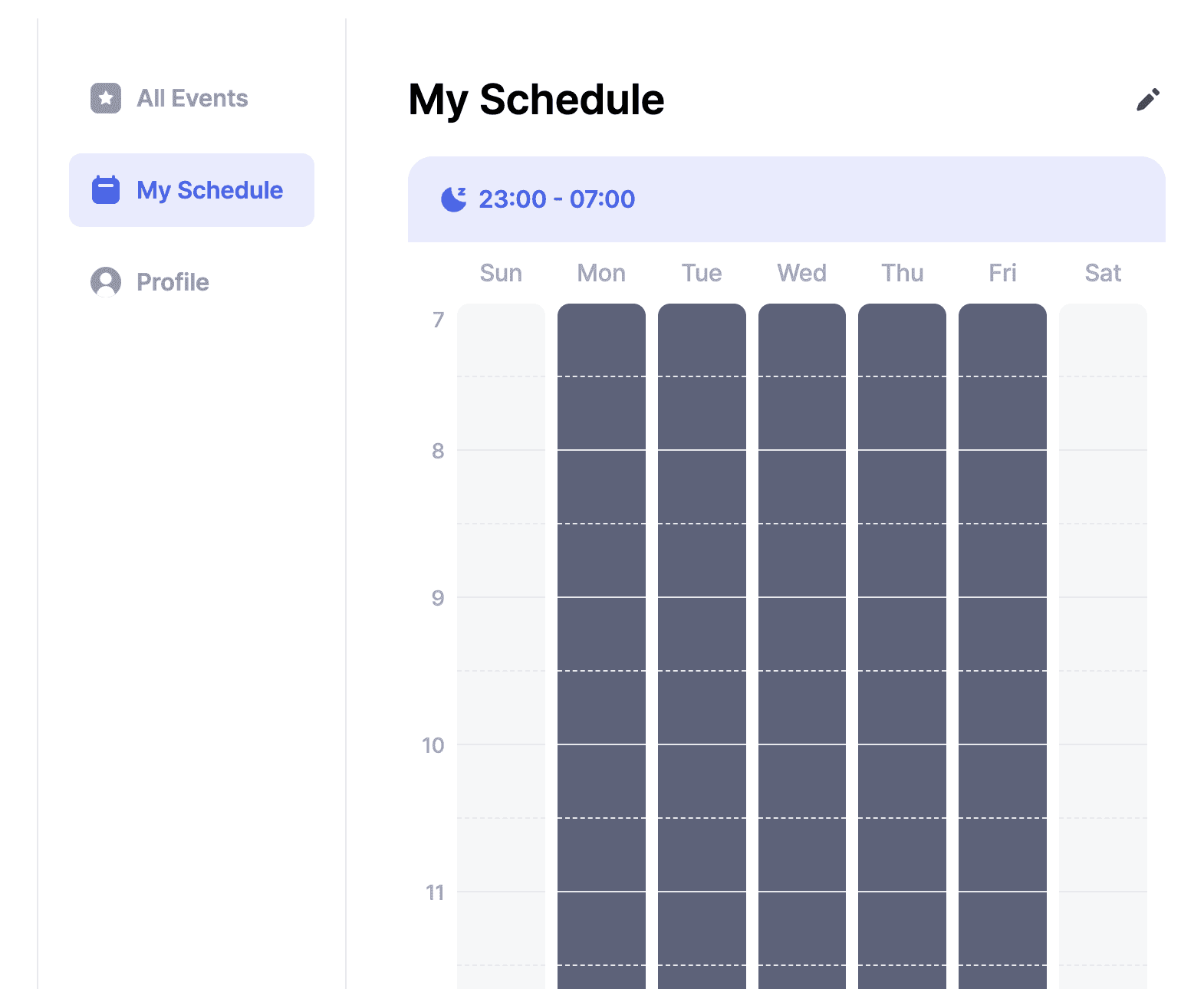
CautionMy Schedule is available only to logged-in users. Your schedule is saved to your account, so it doesn't apply when you join as a guest. If you coordinate meetings often, we recommend logging in.
Open the edit screen
From My Page, open My Schedule and tap Edit to open the editor. Here you set your sleep time and weekly fixed schedule in turn.
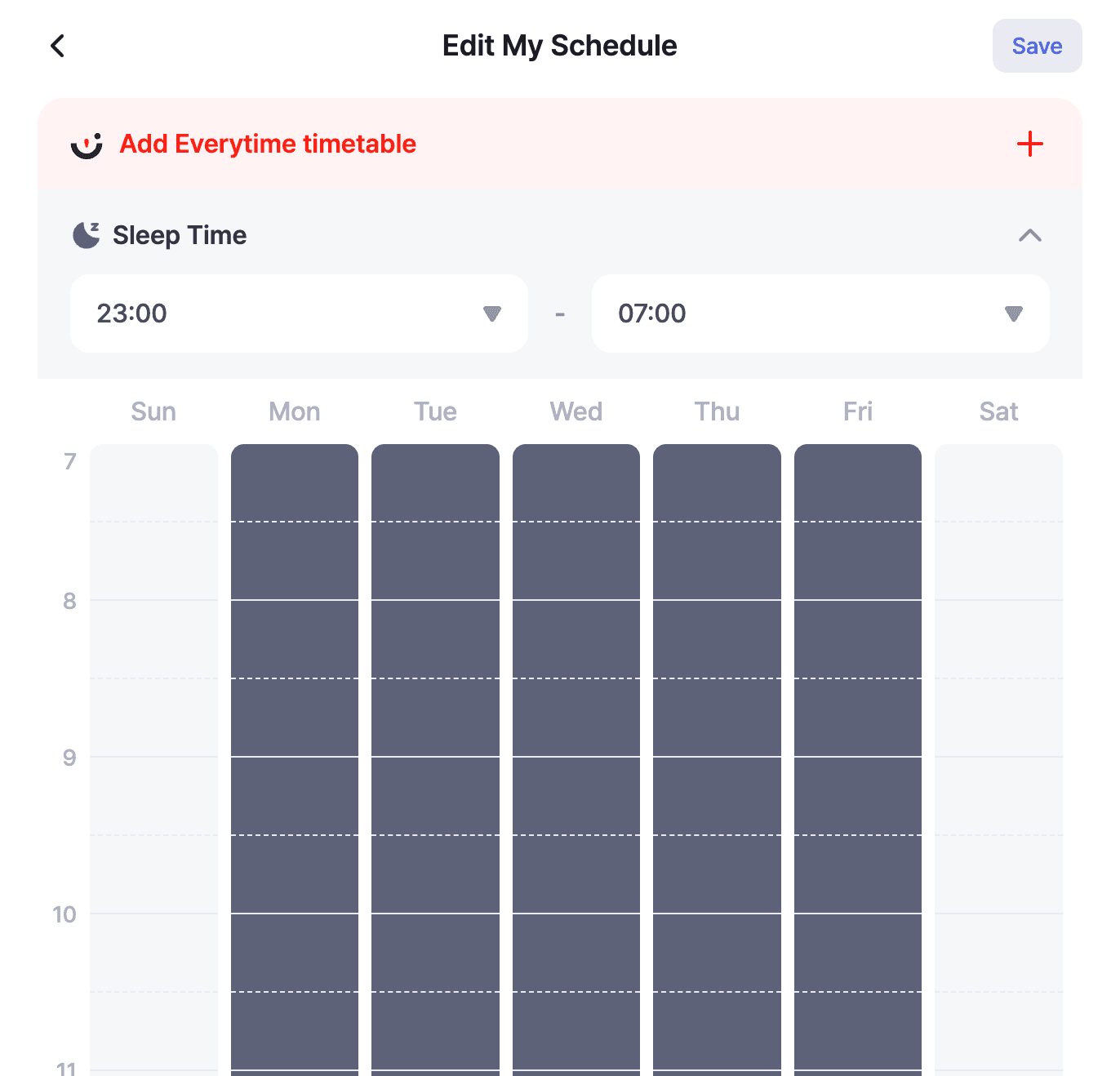
Set your sleep time
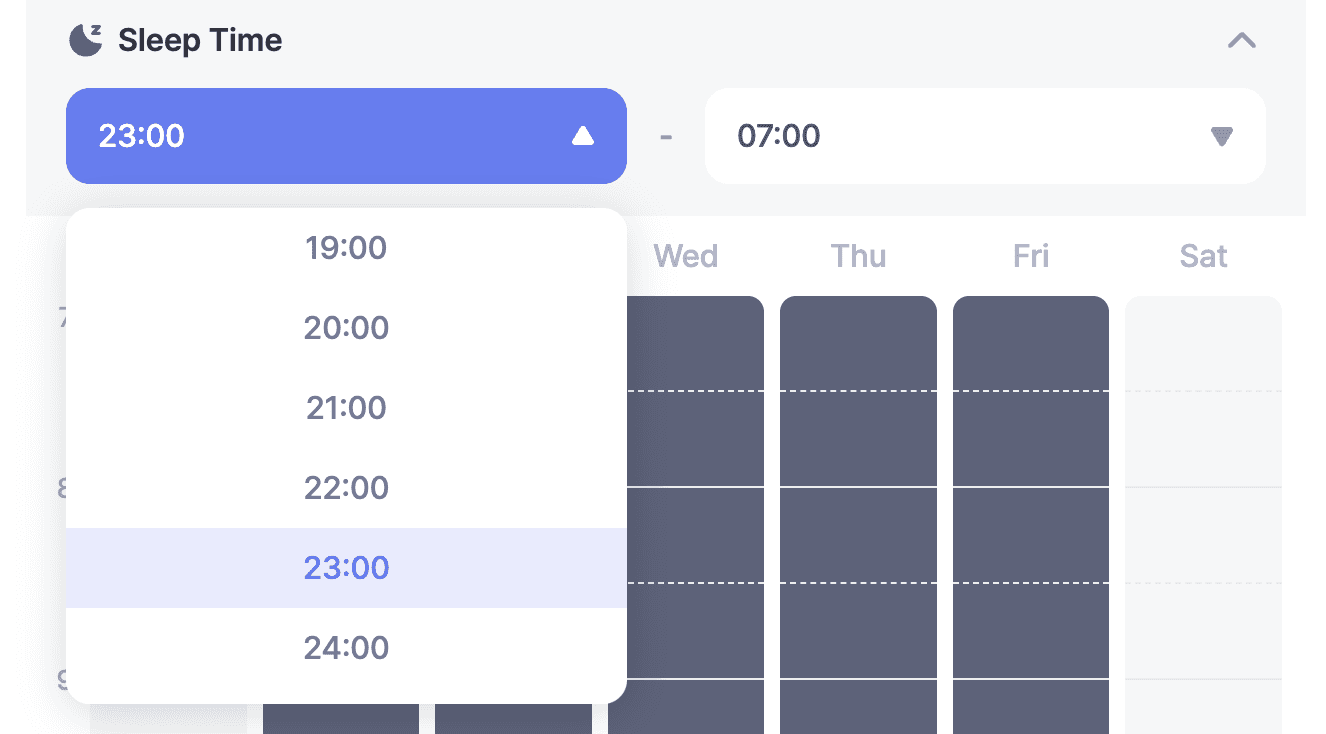
First, set the hours you sleep each day. Pick a start time and an end time from the dropdowns. For example, set 23:00 – 07:00 and that range is automatically left out of your availability in every event. If you set the start and end to the same time, it's treated as no sleep time.
Mark your weekly fixed schedule
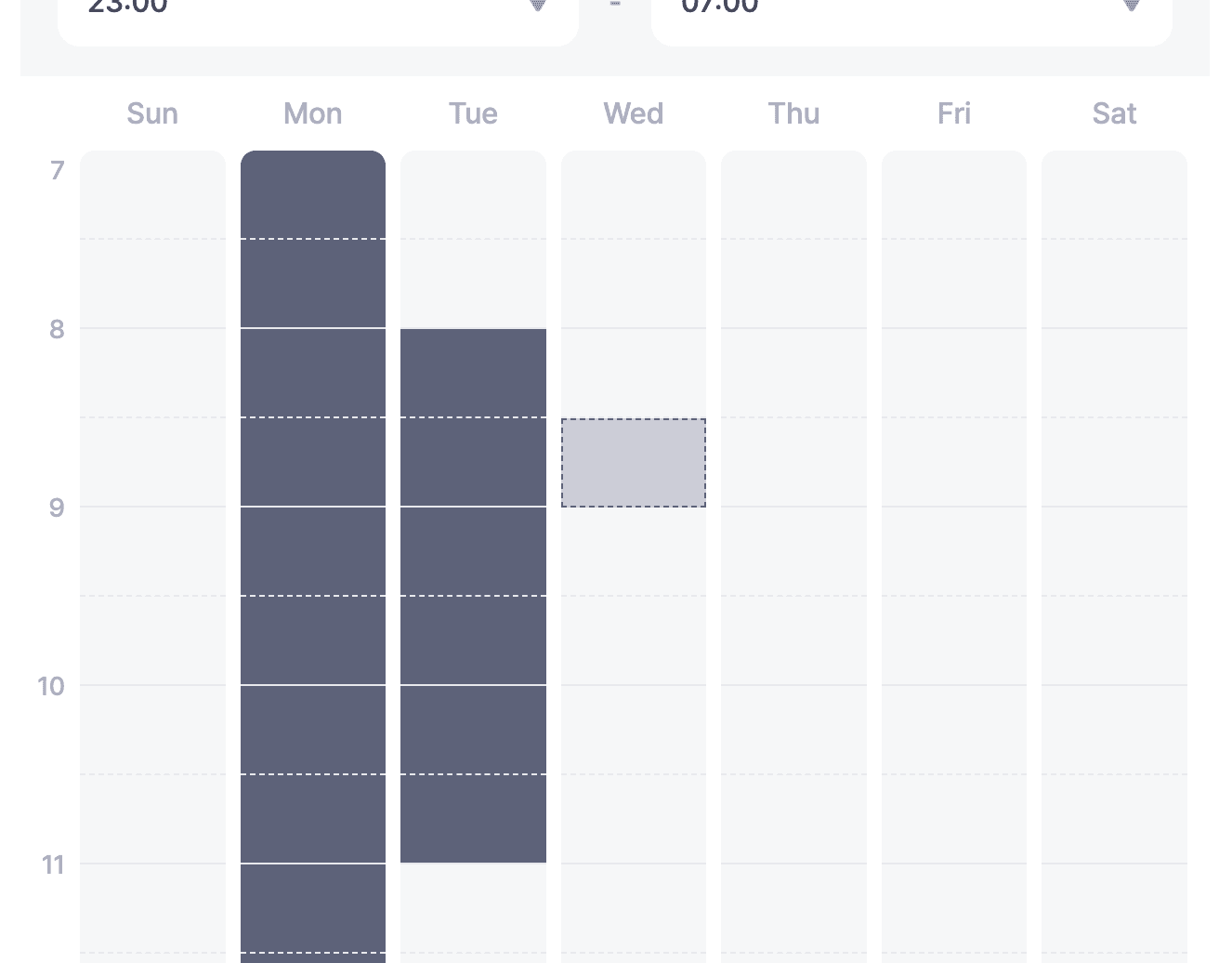
The board below is a grid with time slots across and weekdays (Mon–Sun) down. Tap the cells you're always busy each week. Paint in recurring commitments like classes, work shifts, and regular meetings. Tap a cell again to clear it if you tapped it by mistake.
Save
When you're done, tap Save at the top to finish. Your saved My Schedule is kept on your account and applied automatically to any event you join afterward. Whenever your routine changes, come back to this screen to update it.
Next step
If you're a student and painting each weekly slot by hand is tedious, the next article shows how to import your Everytime timetable directly. Or skip ahead to the last article if you want to see how My Schedule is used in events.