No need to paint each class by hand
Painting the same class hours onto the board one by one is tedious. If you're a student, you can import the timetable you've already built in Everytime. Just paste the link, and your class hours are filled into your weekly fixed schedule automatically—one import per semester and your My Schedule is done.
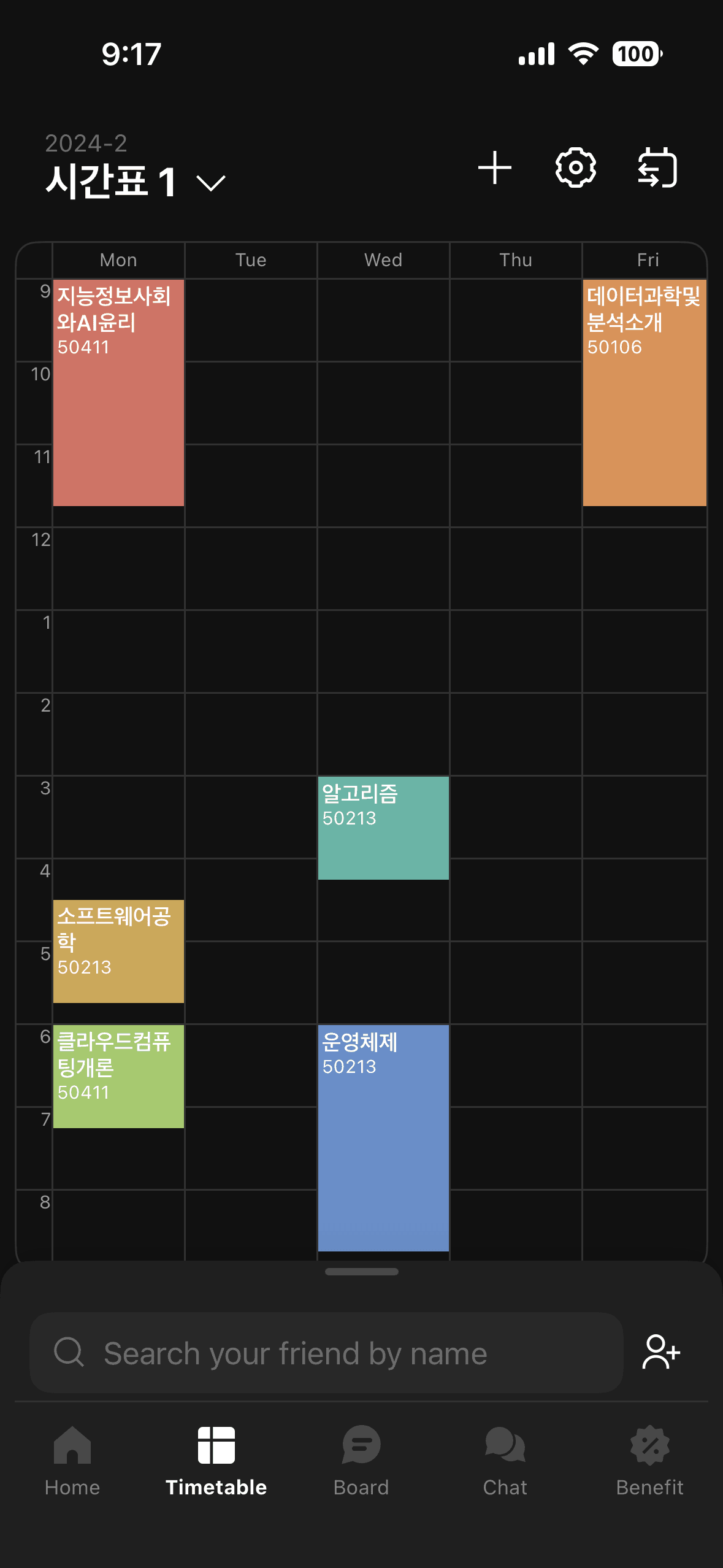
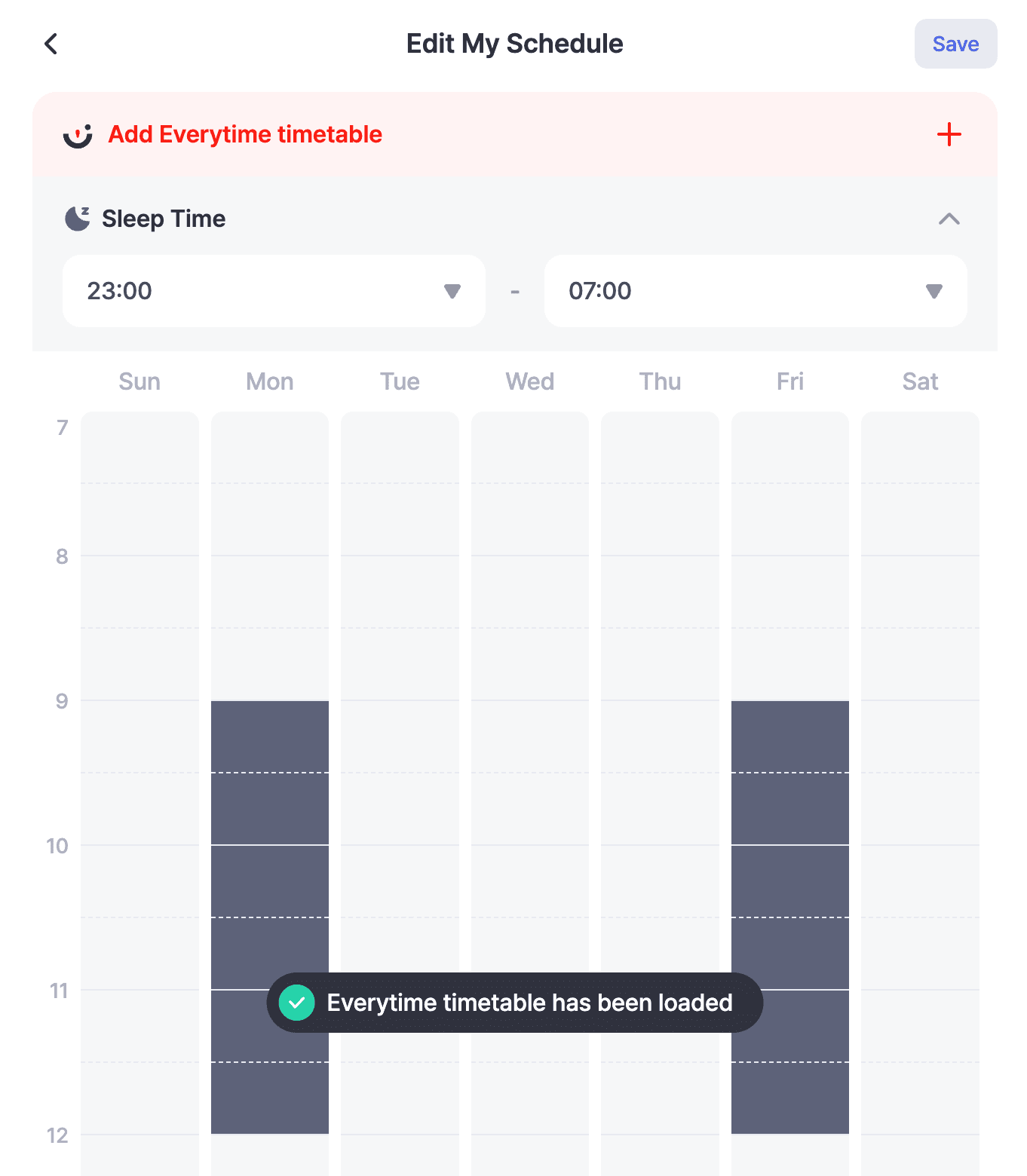
TipAlready have a My Schedule set up? No problem. Importing your Everytime timetable keeps your existing weekly fixed schedule intact and simply paints your class hours on top of it. Nothing you've already marked is erased, so import with confidence.
Open the import screen
You import your Everytime timetable from the My Schedule edit screen. Open it from My Schedule on My Page, or jump straight to it from the My Schedule section on the home screen once you're logged in.


Tapping the button opens the Everytime import screen, where you paste the link.
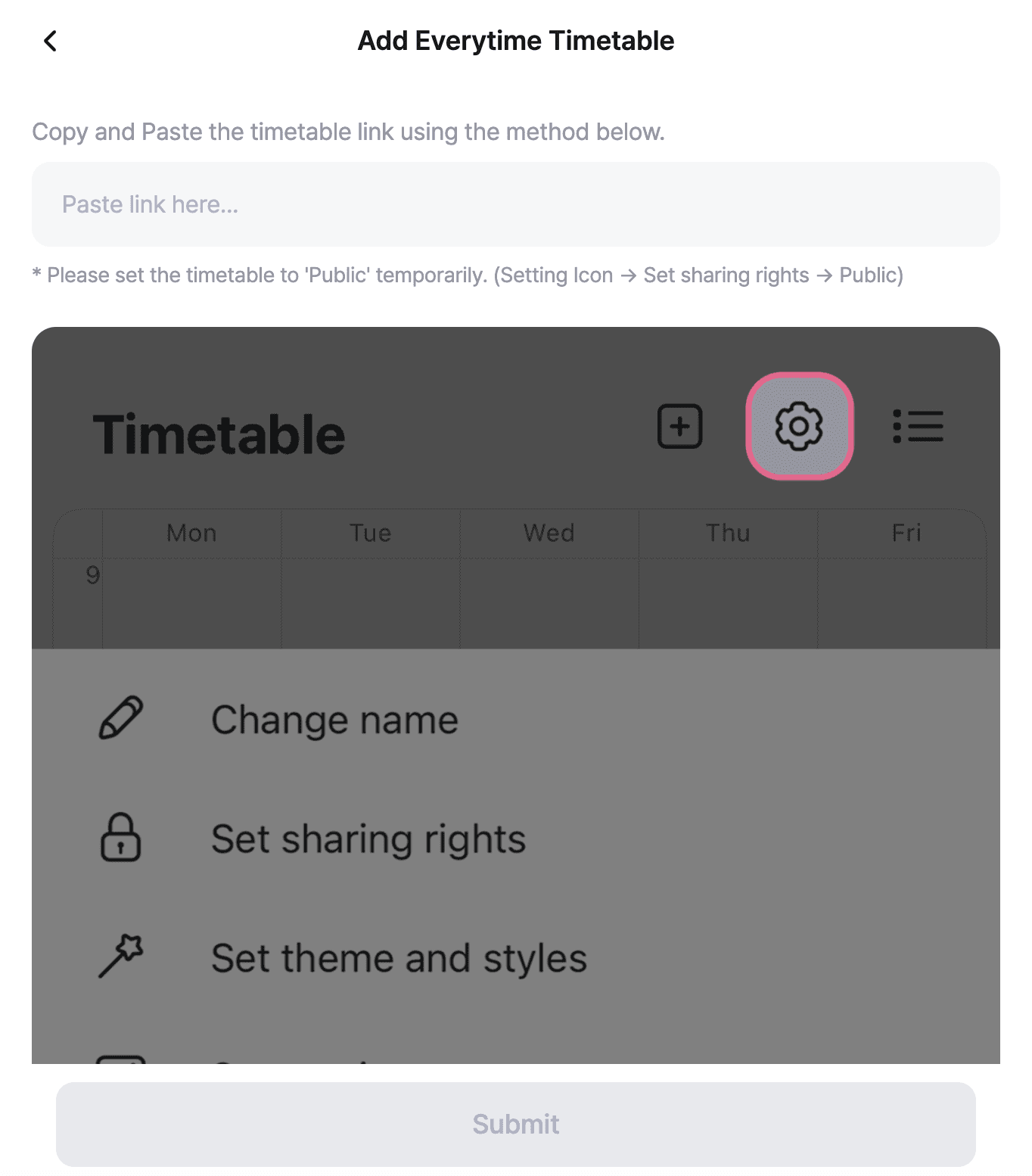
Paste the timetable link
Open your timetable in the Everytime app, copy the link with 'Share URL', and paste it into the input field. Tap confirm, and the server reads your timetable and fills your class hours into the weekly schedule.
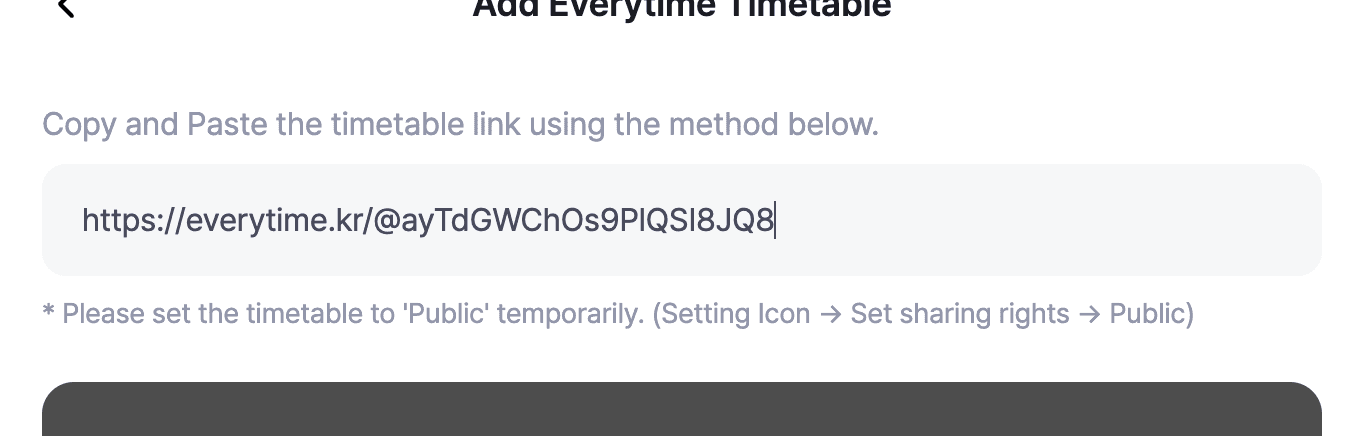
CautionTo import from Everytime, briefly change your timetable's visibility to 'Public' (settings icon → change visibility → Public). While it's private, pasting the link won't let it read your timetable. Once imported, you can switch it back to private.
Check and save
Make sure the imported timetable landed correctly on the weekly board. For commitments Everytime doesn't have—like a private academy or a part-time job—paint them on the board by hand. When you're done adjusting, tap Save at the top to finish.
Next step
Your My Schedule is now ready. The next article covers how it's loaded automatically when you join an event.